I have worked on some repetitive works which involves copying files between some servers. I always try to automate as it reduce the manual errors and I am lazy to do boring task in manual :).
Using powershells Copy-Item is simple and straight forward. But Robocopy provides more features. It provides many options like retry/jobs/filtering/mirroring which I use mostly when working.
We can get the all supported parameters from Robocopy documentation or simple running robocopy /? in command line.
$source = '<SOURCE_PATH>'
$destination = '<DESTINATION_PATH>'
# /E - Copies subdirectories. This option automatically includes empty directories. Refer the doc for supported parameters
$robocopyOptions = @('/E')

Write-Host 'Copying from $source to $destination'

$CmdLine = @($source, $destination) + $robocopyOptions
& 'robocopy.exe' $CmdLine

Write-Host 'Copy Completed'
Preceding command invokes Robocopy windows utility and copy the files. This is the simplest usage and we can use it for more complex scenarios.
In many cases, we found ourselves in a situation where we need to Read and update XML files.
It’s quite straight forward in Power Shell.
Sample XML File:
Powershell script to read and update XML file
This file contains hidden or bidirectional Unicode text that may be interpreted or compiled differently than what appears below. To review, open the file in an editor that reveals hidden Unicode characters.
Learn more about bidirectional Unicode characters
This file contains hidden or bidirectional Unicode text that may be interpreted or compiled differently than what appears below. To review, open the file in an editor that reveals hidden Unicode characters.
Learn more about bidirectional Unicode characters
When we do code in c#, we have usingstatement to dispose our objects. so we don’t have to. :). What about PowerShell? Can we do that?
Here is a PowerShell function which behaves as using statement. 🙂
This file contains hidden or bidirectional Unicode text that may be interpreted or compiled differently than what appears below. To review, open the file in an editor that reveals hidden Unicode characters. Learn more about bidirectional Unicode characters
So whenever we are dealing with an object that should be disposed we can use this function as below.
This file contains hidden or bidirectional Unicode text that may be interpreted or compiled differently than what appears below. To review, open the file in an editor that reveals hidden Unicode characters. Learn more about bidirectional Unicode characters
Service principle are non-interactive Azure accounts. Applications use Azure services should always have restricted permissions. Azure offers Service principals allow applications to login with restricted permission Instead having full privilege in non-interactive way.
Using Service Principal we can control which resources can be accessed.
For Security reason, it’s always recommended to use service principal with automated tools rather than allowing them to log in with user identity
Create a Service Principal with PowerShell.
Note: For this demo we are using Azure RM PowerShell module. Azure has introduced new PowerShell module called AZ. Create AD App
Create AD app
This file contains hidden or bidirectional Unicode text that may be interpreted or compiled differently than what appears below. To review, open the file in an editor that reveals hidden Unicode characters.
Learn more about bidirectional Unicode characters
This file contains hidden or bidirectional Unicode text that may be interpreted or compiled differently than what appears below. To review, open the file in an editor that reveals hidden Unicode characters.
Learn more about bidirectional Unicode characters
This service principal is valid for one year from the created date and it has Contributor Role assigned. Further using this Service principal application can access resource under given subscription. We can scope to resources as we wish by passing resource id as a parameter for Scope.
View created AD app in Portal
1. Log in Portal
Go to Azure Active Direcoty -> App Registrations
We can find the created app as below
Once we click the app we will see app details as below
We need this information when we need to login through Service principal
Login using Service Principal with Powershell
This file contains hidden or bidirectional Unicode text that may be interpreted or compiled differently than what appears below. To review, open the file in an editor that reveals hidden Unicode characters.
Learn more about bidirectional Unicode characters
Once we run the script we can successfully log in to Azure using Service Principal
Full code: 🙂
This file contains hidden or bidirectional Unicode text that may be interpreted or compiled differently than what appears below. To review, open the file in an editor that reveals hidden Unicode characters.
Learn more about bidirectional Unicode characters
In some cases, we need to run some script in administrator mode.
Sometimes we face a situation where we want to know whether the script is running on Administrator mode.
Following script says whether PowerShell script is running on Administrator mode or not.
$elevated = [bool](([System.Security.Principal.WindowsIdentity]::GetCurrent()).groups -match "S-1-5-32-544")
if($elevated -eq $false)
{
throw "In order to install services, please run this script elevated."
}
else {
Write-Host "You are in Administrator mode"
}
In some cases we need to call POST REST API using Powershell.
Let’s go through sample code to get to know how it is done using Powershell.
In this Article we will go through below topics.
Create sample Web API
Invoke Web API in Powershell
Create Sample Web API
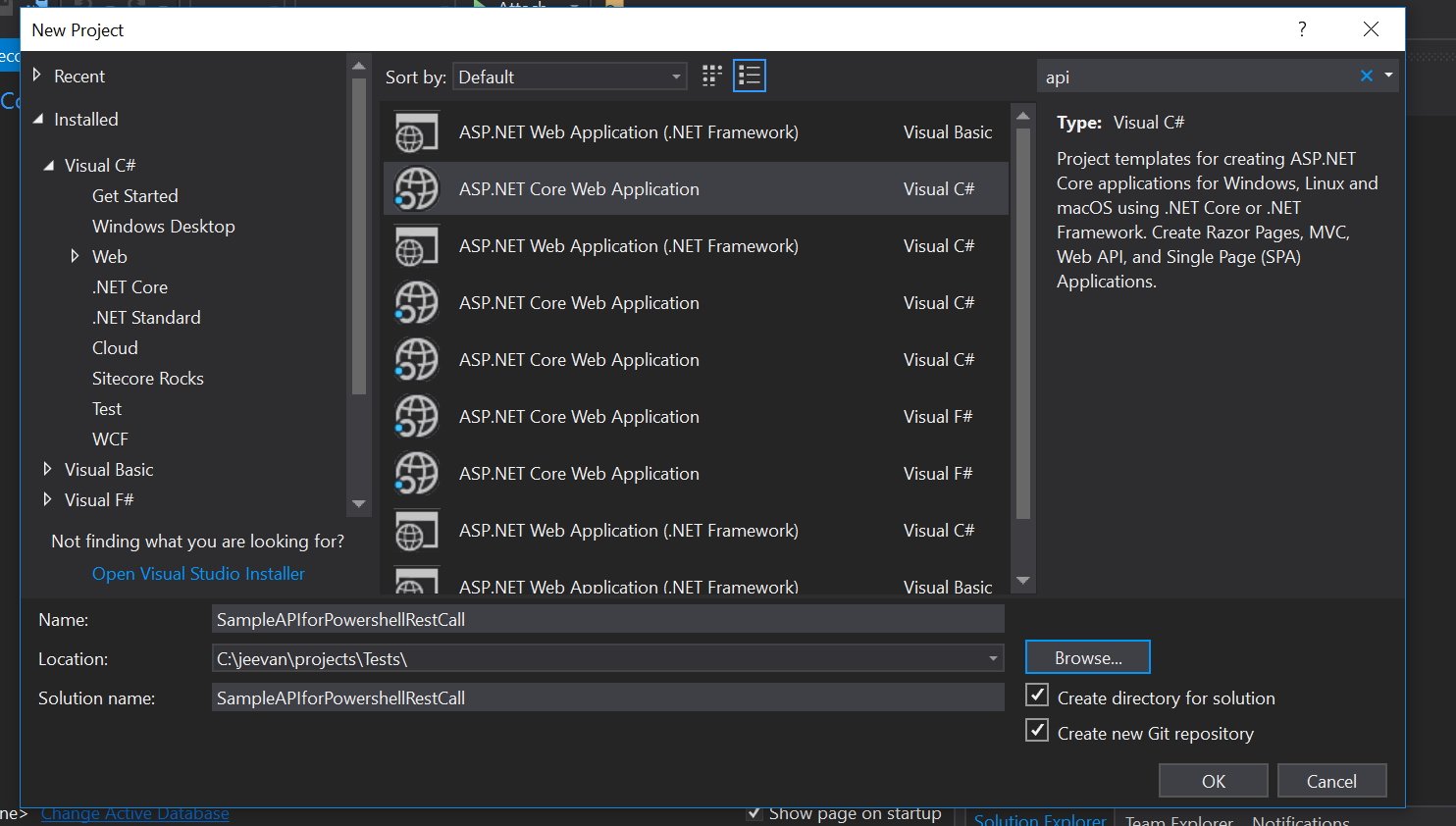
Create ASP.NET Core Web Application
Select API option
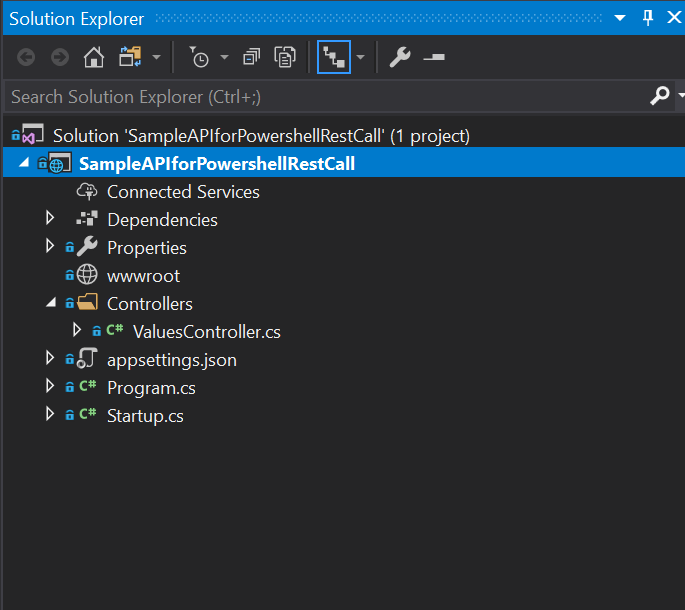
Once project created we can see default values controller as below
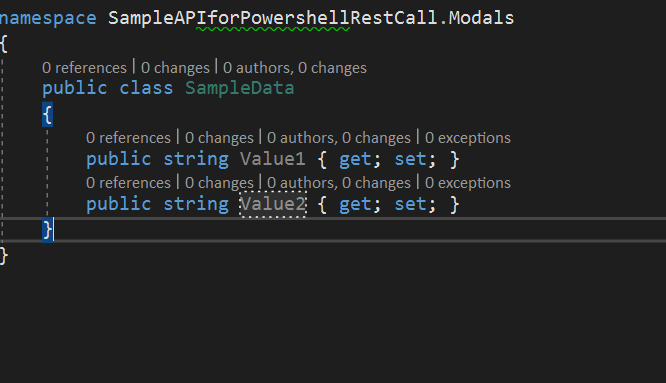
We need our API to accept some Data. So we will create Modal class for that
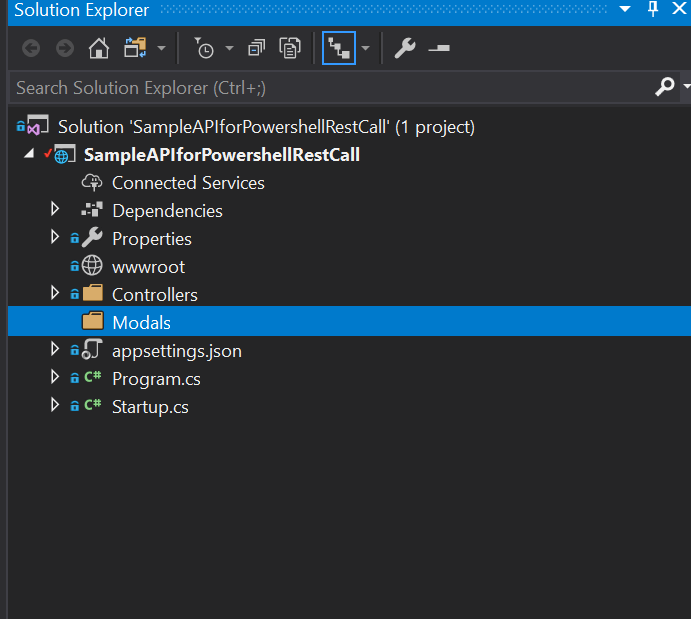
Create Modals Folder
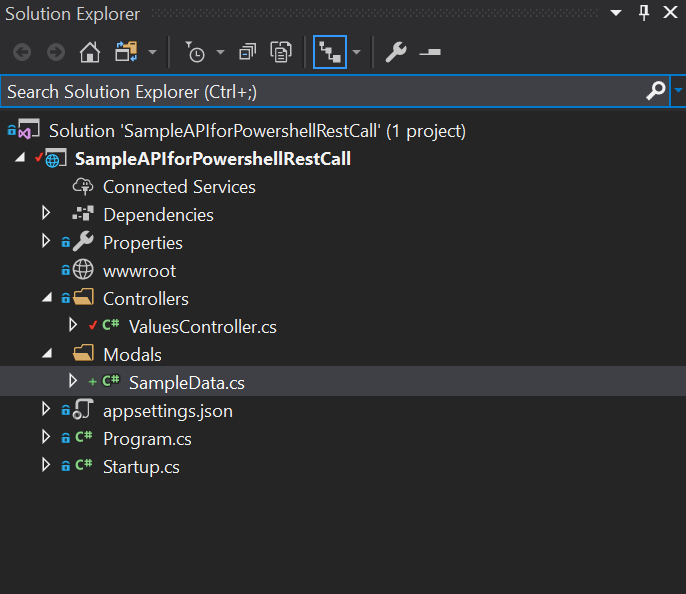
Create SampleData class under Modals Folder
Add Sample properties to the class. I created Value1 and Value2 as string type.
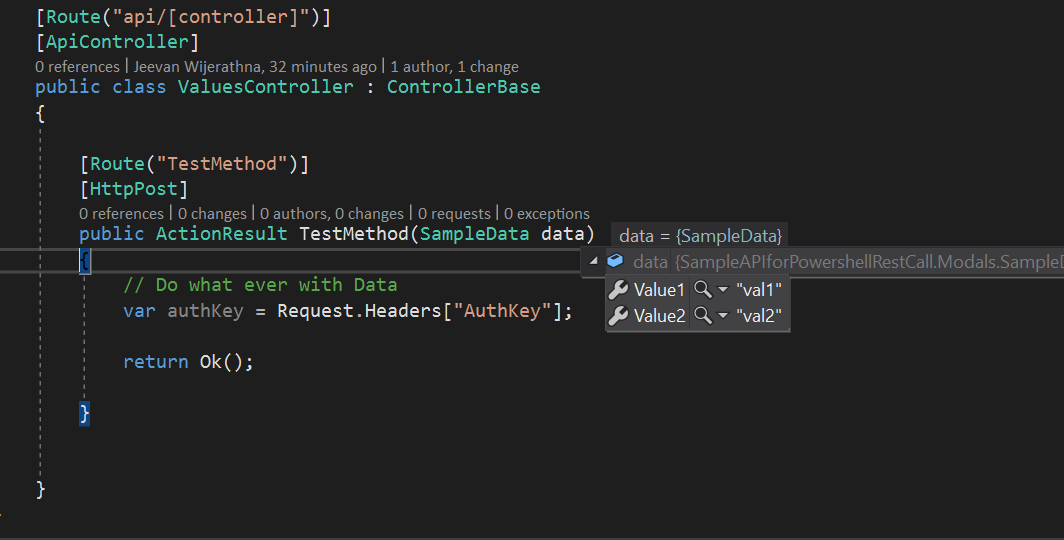
Implement API method in ValuesController as below.
[Route(“TestMethod”)]
[HttpPost]
public ActionResult TestMethod(SampleData data)
{
// Do what ever with Data
var authKey = Request.Headers[“AuthKey”];return Ok();
}
Invoke Web API in Powershell
Open Powershell ISE and write following codes to invoke REST API.
There are some cases we need to update json files using powershell.
This is how I do it.
This file contains hidden or bidirectional Unicode text that may be interpreted or compiled differently than what appears below. To review, open the file in an editor that reveals hidden Unicode characters. Learn more about bidirectional Unicode characters
This file contains hidden or bidirectional Unicode text that may be interpreted or compiled differently than what appears below. To review, open the file in an editor that reveals hidden Unicode characters. Learn more about bidirectional Unicode characters






 randomtutes